STAB
The STAB module reads the physical properties from user-defined property tables after entering pressure an temperature and transfers the data to other calculation modules. For calculation pressures or temperatures in between the entered data or out of range of the entered data the program extrapolates or interpolates the physical properties.
For creating the property tables the module includes an editor.
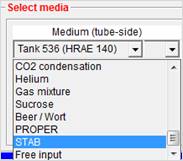
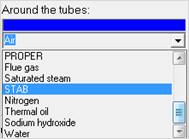
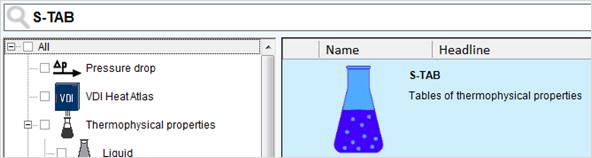
Start the program and double-click the STAB module under 'Properties'. In the LV heat exchanger design programs AC, COIL, KOND, SOWU, VERD and WTS the module can be started when selecting the media.
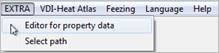
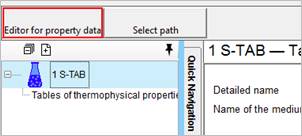
Open the editor by ‘EXTRA’ / ‘Editor for property data’ or use the according button.
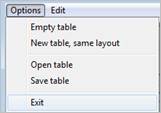
The 'options' menu allows you to load and save tables.
The menu item ‘New table, same layout’ deletes all property data in the displayed table, but keeps the values for temperatures and pressures. You may enter properties of new media without creating a completely new table.
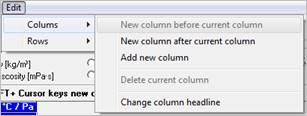
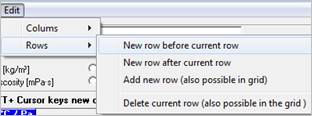
This menu allows you to add columns and rows to your table or to delete existing columns or rows. If you add a new column you are asked to enter the pressure step in [Pa] for this column.
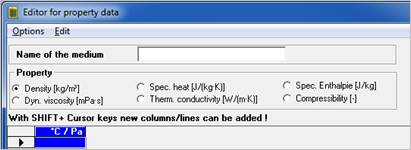
Enter the name of the medium in the field ‘Name of the medium’
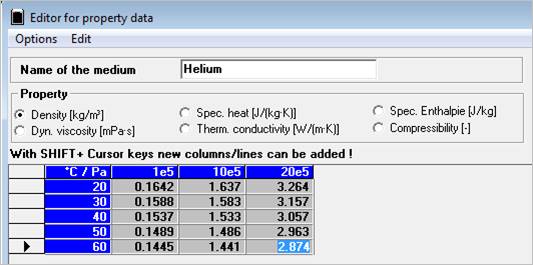
Select the kind of data (density, thermal conductivity, etc.).
Click the empty field below „°C / Pa“ in the table.
The key combination „shift and cursor down (Shift + ¯) or the menu item ‘Rows’ in the ‘Edit’ menu adds new rows to your table.
The key combination „shift and cursor right (Shift + ®) or the menu item ‘Columns’ in the ‘Edit’ menu adds new columns to your table. If you add a new column you are asked to enter pressure step in Pa for this column.
Enter the temperatures at which you have the properties in the first column.
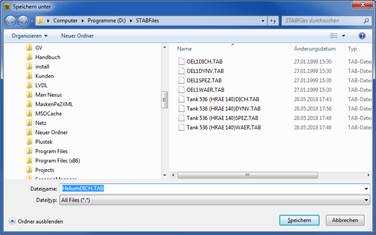
Now enter the properties dependent on temperature and pressure. Save the table (‘Save table’ in the ‘Options’ menu). The table is named after the name of the medium (e.g. helium) plus an extension according to the kind of data entered. An example would be HeliumDYNV.tab for dynamic viscosity.
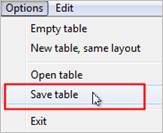
To enter new data for another medium select the property. Then select the menu item ‘New table, same layout’ in the ‘Options’ menu. All property data in the displayed table is deleted and you can enter new data for the new property.
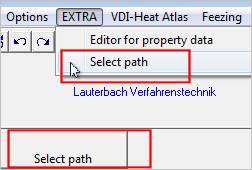
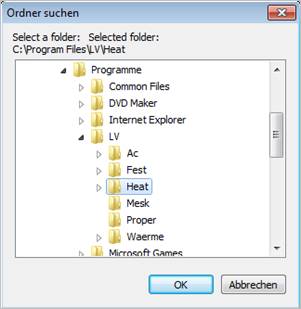
To be able to use the data in a LAN (Local Area Network) you may specify a network path.
Please note that write access has to be granted for this path.