QuickSheet
With the new LV QuickSheet you will achieve your goal even faster.
You want to solve a problem for which you need several LV modules? Then the new LV QuickSheet gives you the option of managing all module combinations created in a project using an independent input mask.
This means that you can control all previously entered input values clearly on one screen without having to switch between the modules/chapters. All required input fields of the corresponding modules are clearly displayed and you can enter new values for each size or have certain values of your previous input entered automatically. In addition, all your previously created connections of variables that you created in the modules before creating the QuickSheet are retained.
This allows a complex task to be processed conveniently via a single input mask.
The QuickSheet is a simplified input mask reduced to the essentials, without any redundant details.
We offer you QuickSheets designed for various tasks, with which you achieve a significant added value compared to a conventional calculation.
To create a new QuickSheet, first set up all your required modules as usual. Enter all the required variables and select all the settings required for the calculation. As usual, you can link variables in the modules that are to represent the same size.
Now select the option "Create Quick Sheet" on the "File" tab. An overview window of the QuickSheet will appear. Here you can find the values you entered with the assignment to the chapter in which the value is used.
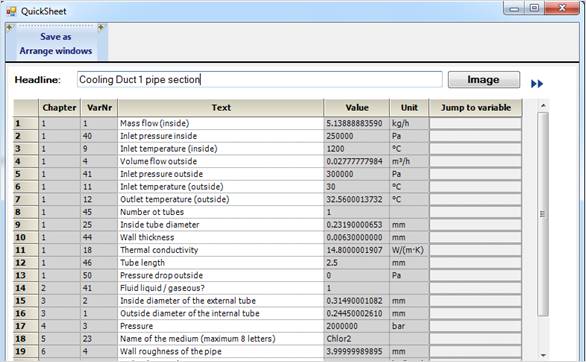
Create QuickSheet Overview Window
You can select the following options from the command line of the QuickSheet overview:
|
Save as |
Saving is always associated with the mandatory specification of the storage location in order to avoid accidentally overwriting an existing QuickSheet with the same name. The default save name corresponds to the name of your project / saved .atl file. |
|
Arrange windows |
Arranges the windows on the screens side by side. |
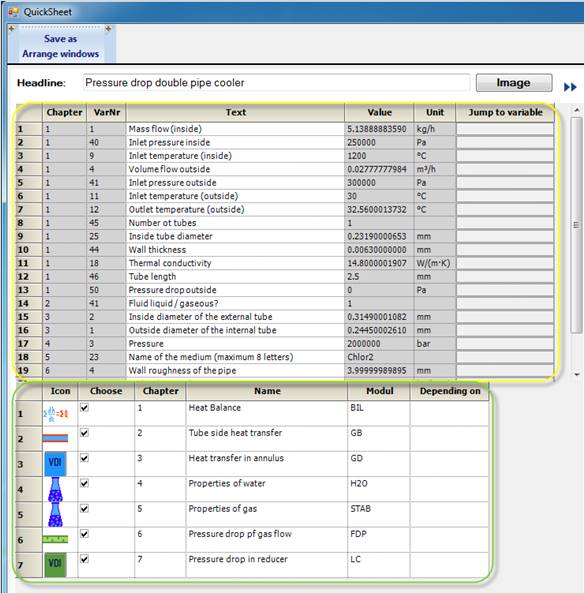
Create QuickSheet
In the field behind the description "Heading" you can assign your own heading for your QuickSheet.
Note: This is not the savename of your QuickSheet.
By selecting the "Image"
option, you can assign your QuickSheet your own logo, which will later be
displayed in the treeview like the symbols/logos of the modules.
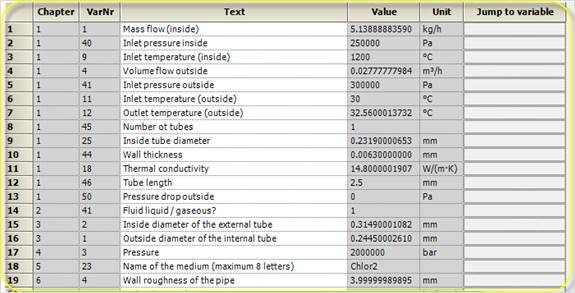
The column headings of the yellow framed table stand for :
|
Chapter |
Program internal numbering of the module you created |
|
VarNr |
Module-internal numbering of variables in a specific module |
|
Text |
Description of the variables, according to the designation in the module. This text can be changed at any time. |
|
Value |
Value of the input variable |
|
Unit |
Unit of the input variable |
|
Jump to variable |
After clicking on the field, the view jumps to the corresponding variable in the corresponding module mask. |
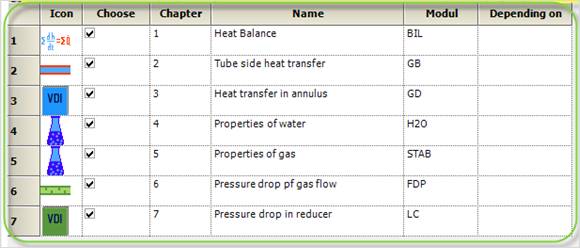
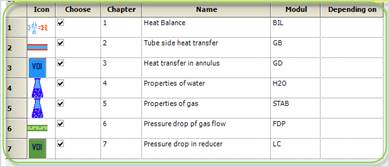
In the table framed in green, you now have the following options:
|
Icon |
Internal program logo of the used module. This cannot be changed. |
|
Select |
Here you can select the modules that you want to have created in your QuickSheet. A check mark activates the corresponding module for creating the QuickSheet. |
|
Chapter |
Program internal numbering of the module you created. This cannot be changed. |
|
Name |
Description of the module, according to the designation in the program. This text can be changed at any time. |
|
Module |
Program internal module name, according to the name in the program. This text can be changed at any time. |
|
Depending on |
Here you can enter dependencies between the modules for a better overview. This has no effect on the calculation sequence and only serves your overview. |
To load a new QuickSheet and add it to
your existing project, select the "Chapter" option in the
"Atlas" tab or select the Add icon  above the TreeView in the "Project Overview" tab. Opening
a QuickSheet is only possible from within the program, not from Windows Explorer.
above the TreeView in the "Project Overview" tab. Opening
a QuickSheet is only possible from within the program, not from Windows Explorer.
If you select the Create New Project
icon  or select the "New..."
option in the "File" tab, a new empty project is created into
which you can then load your QuickSheet. Your existing project can also be
saved beforehand.
or select the "New..."
option in the "File" tab, a new empty project is created into
which you can then load your QuickSheet. Your existing project can also be
saved beforehand.
In the module selection that appears, select Quick Sheet from the upper command line. Now you can load your existing QuickSheet
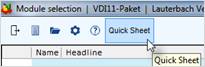
Now all modules contained in the QuickSheet are inserted into your existing project if necessary and afterwards the QuickSheet mask opens, which can look like this for example:
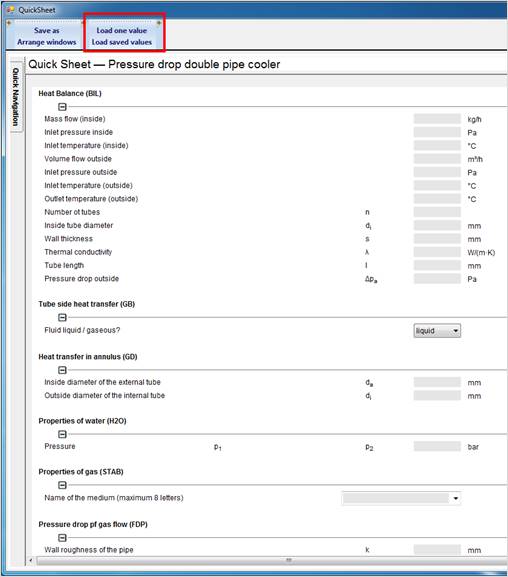
QuickSheet Input Mask
This is an independent mask which displays all input values of the modules you have selected. The individual sections have the names of the previously entered names in the columns with the column headings "Name" and "Module" of the QuickSheet overview.
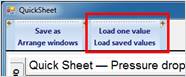
The two new options "Load a value" and "Load stored values", framed in red, have been added to the command line.
You have the following options for defining input values:
1. You enter a value directly in the corresponding field of a variable yourself.
2. automatically enter all values as you entered them when you created the QuickSheet.. Loading Saved Values
3. ou automatically enter individual values as you entered them when you created the QuickSheet. Load a value
Select a variable field and click on "Load a value". The value specified in the corresponding .atl file is transferred to the active variable field.
All values are also entered on the module mask after being entered on the QuickSheet mask. Depending on the order in which you enter the values, this can lead to message windows appearing, which you have to close to be able to continue the input.
You can add variables to the QuickSheet template at a later point of time.
Use Drag & Drop to drag an existing variable field from a module mask to the QuickSheet mask. The corresponding size appears in the corresponding section of the module.
If possible, do not use values calculated by the program, otherwise other sizes may have to be released. This also results in non-solvable systems of equations.
You can change the texts and symbols of the variables on the QuickSheet screen at any time by right-clicking on a text and selecting Edit Text.
You can now enter any text. This has no effect on the names of the variables in the linked modules.
It only serves to give you freedom of design on the QuickSheet screen.
Especially in process engineering it is often necessary to perform calculations iteratively.
A starting value for different sizes is required so that the first iteration step can be carried out. Start values can be entered in the module mask by placing an "s" after the numerical value when entering the value, which stands for "estimated value". Thus the system recognizes these values as changeable and varies these with each iteration. These values are displayed in green on the module mask.

In order for the calculation to run correctly, it is necessary to define these initial values first. Values previously entered as estimated values are therefore listed first on the QuickSheet screen and do not appear in the chapters below.
You also have the option of dragging and dropping variable fields from the module mask to the QuickSheet overview to define them as start values.
Now the corresponding variable will appear first on the QuickSheet under the newly created section heading "Initial values".
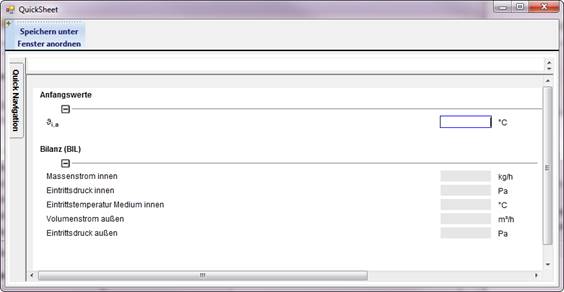
QuickSheet mask with "Initial values" section