Graphically editing the tubesheet
After having entered the geometrical
tubesheet data the tubesheet you can display and edit the tubesheet by
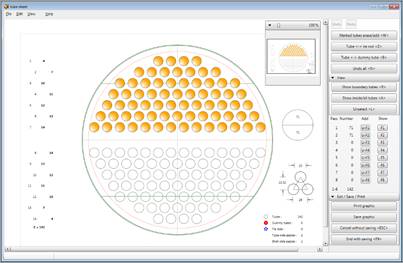
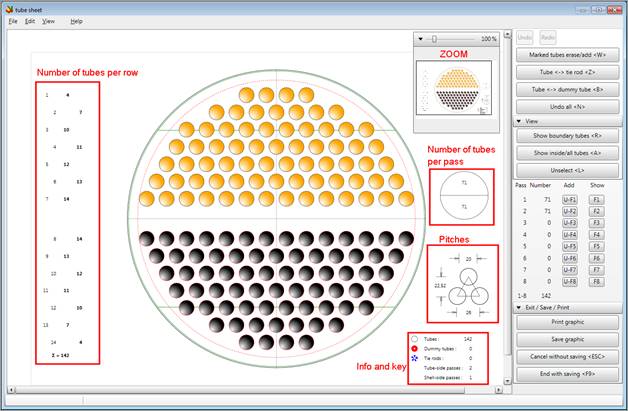
‘Tubesheet’ / ‘Display Tubesheet’. The following mask is
displayed:
1. Delete single tubes or tube rows
Select the tubes or tube rows to be erased and click the field ‘Marked tubes erase/add <W>’ or press the ´W´ key or ‚Del’ key.

2. Setting tie rods (stays) and dummy tubes
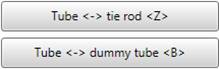
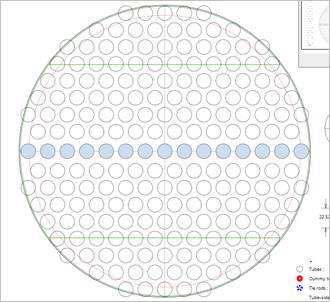
Position the cursor on the tube which will be the tie rod and press the ´Z´ key. The tube is marked in hatched blue. To deselect the tube press the ´Z´ key again. The cursor must be positioned on the selected tube. When printing the tubesheet, tie rods (stay tubes) are printed hatched blue while dummy tubes are presented in ‘red’.
In the programs WTS, KOND and VERD the stay tubes will be defined tubes, which are not flown when calculating heat transfer and pressure drop in tubes (correction of flow velocity). Shell-side they are still taken into consideration for the calculation of the heat transfer and the pressure drop.
|
|
|

3. Undo all / reset
By clicking on the field ´Undo all < N >´ or pressing the ´N´ key all changes are undone and the tubesheet is reset.

4. Show boundary tubes
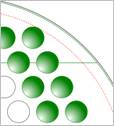
By clicking the field ´Show boundary tubes < R >´ or pressing the ´R´ key, the boundary tubes are displayed. Boundary tubes are presented in ‘green’ colour.
|
|
|

5. Selecting single tubes or complete tube rows
|
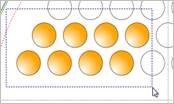
Single tubes or whole tube rows can be selected with the mouse by clicking the left mouse button and dragging a frame around the parts to be selected. The selected parts are filled with ‘orange’ colour.
|
|
6. Unselect
The selection of tubes can be undone by clicking ´Unselect <L>´ or pressing the ´L´ key

.
7. Moving single tubes or tube rows
Single tubes or tube rows may be moved by step ‚mm‘ or ‚µm‘.
Select the tubes or tube rows to be moved.
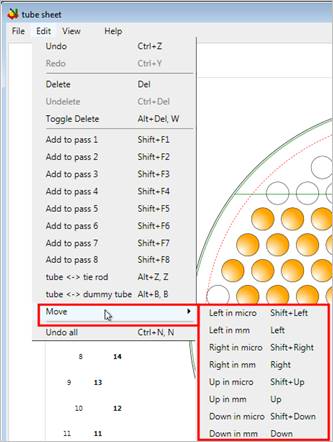
To move the selection by step ‚mm‘ or ‘µm’ click on the according menu item in the ‘Edit’ menu or use the according key combination:
Tubes which are now outside the hull circle or intersect the hull circle are not displayed.
8. Show inside / all tubes
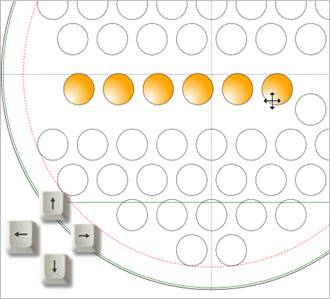
If displaying the tubesheet, only the tubes inside the hull circle are displayed by default. All tubes can be shown by clicking ´Show inside/all tubes <A>´ or pressing the ´A´ key. This may be helpful while editing the tubesheet. Clicking the field again hides the tubes outside the hull circle.

9. Adding tubes which have already been deleted
Press ‚Show inside/all tubes <A>’. All tubes, even the deleted tubes are displayed. Select the tubes you want to add and press ‘Marked tubes erase/add <W>‘.
10. Defining tube-side passes
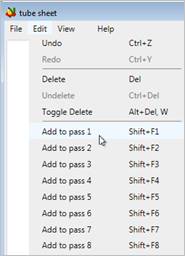
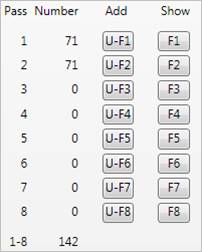
Select the tubes or tube rows to form the first pass and click on the field ‚U-F1‘ or press ‚SHIFT-F1‘.
Select the tubes or tube rows to form the
second pass and click on the field ‚U-F2‘ or press
‚SHIFT-F2‘.
Repeat the procedure to define all passes. You may define up to 8 tube-side passes. By clicking on the field ‚F1‘ – ‚F8‘ or pressing the function keys F1 – F8 the tubes of the according passes are displayed.
11. Zoom
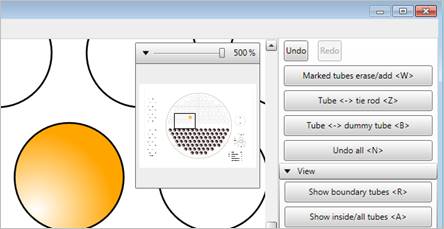
In the input mask there is an area for dynamic zoom. Use the slider to set the zoom factor. By moving the frame you can navigate the enlarged section.
12. Show tube coordinates
|
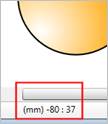
By moving the mouse over a tube the coordinates of the tube are displayed in the status bar of the window. Tube Coordinates in mm (x,y)´.
Zero coordinates are the center of the hull circle.
|
|
13. Mean reference plane when using disk and doughnut baffles
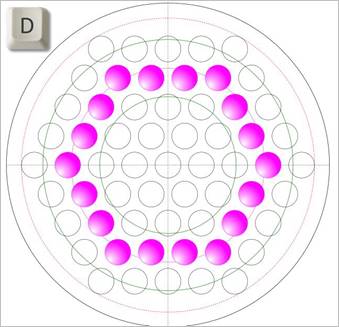
For the calculation of the mean radial flow velocity between the openings of alternate baffles (disk and doughnut), a mean reference plane is defined. This reference plane can be displayed by pressing the ´D´ key.
14. Exit graphics
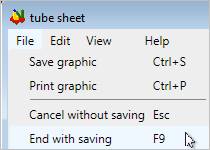
By clicking on the field ‚End with saving <F9>‘ or pressing the ´F9´ key you exit the graphical interface and switch to the SPIE mask.
If the tubesheet has been edited (tubes moved or deleted, tube-side passes defined, tie rods set, etc.) all changes are transferred to the SPIE module and the tubesheet is locked. This means changing the tubesheet by the programs WTS, KOND and VERD is not possible anymore.
Lock Tubesheet
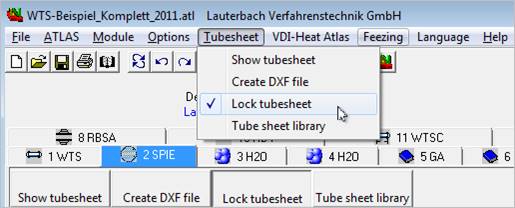
Changing the tubesheet data in the input masks of SPIE, WTS, KOND and VERD is also not possible. The input fields in these masks are locked as well.
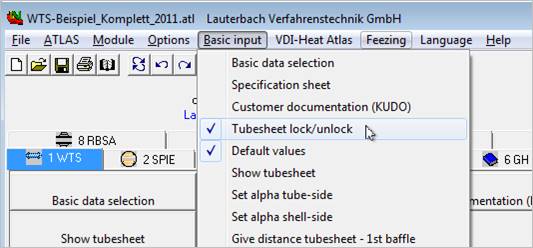
To be able to edit the tubesheet once again, select ‘Tubesheet lock/unlock’ in the Basic Input menu of these programs.